.png?width=80&height=58&name=unnamed%20(1).png)

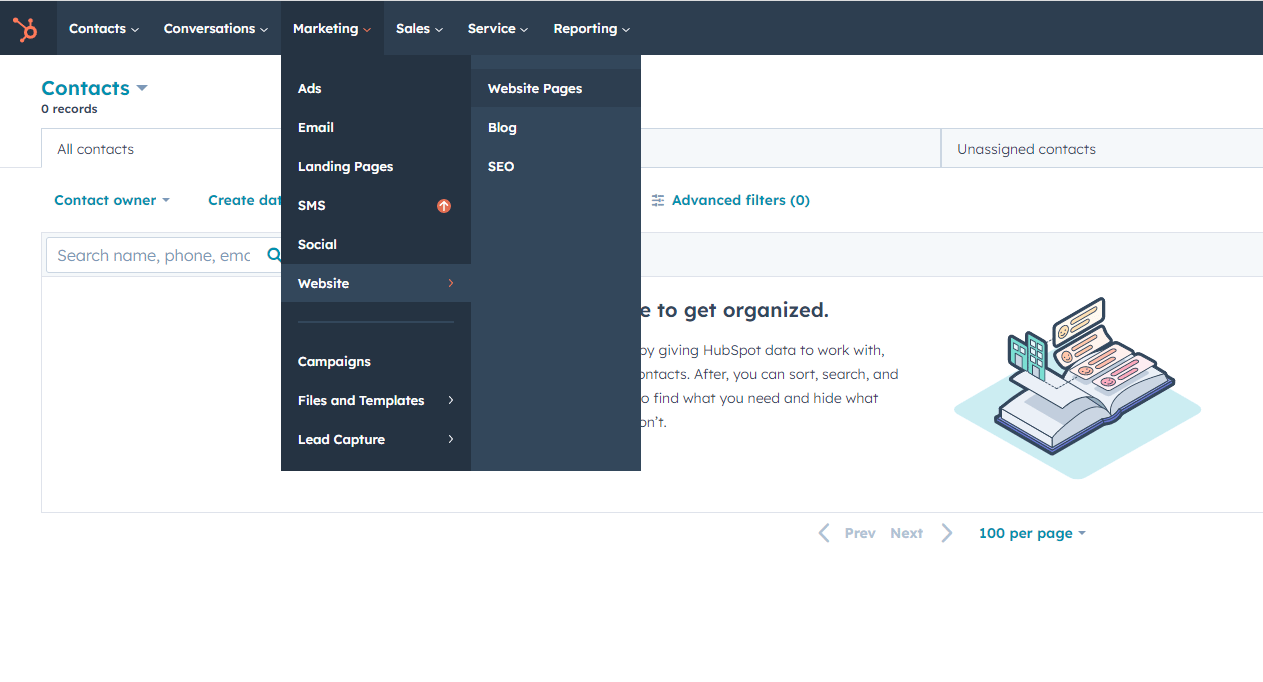
How to Create a Website Page?
Step 1: To create a new page start by logging into your HubSpot account. Go to Marketing > Website > Select the type of page you want to create. You can choose between Website Pages, Landing Pages, or Blog.
Step 2: Click on Create and then select your Theme followed by choosing what type of page you want to create. You can pick among many options like Home, Case Detail, FAQ, Contact, etc.
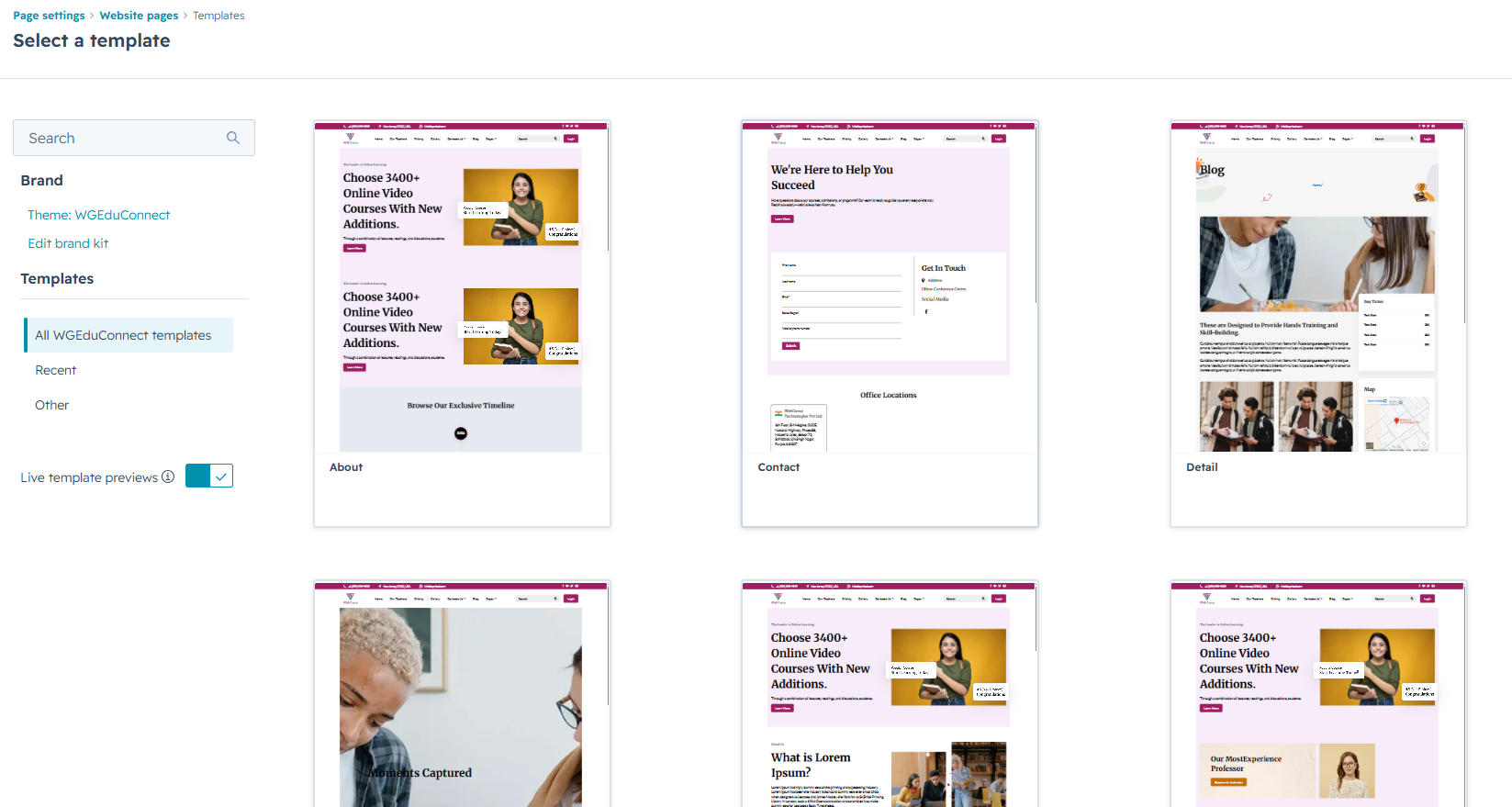
Step 3: Once this has been done enter the Internal Page Name and click on Create Page – your page will be successfully created.
Step 4: You can add or remove modules accordingly, Used multiple time modules or remove accordingly as your design.
Step 5: You can Create Webpage in Multiple languages and also generate Page URL accordingly Selected Languages.
Step 6: You can add external Style to Particular Single Page.
Step 7: You can add Site description in meta description, page title and other necessary information in setting tab and publish the page after getting the changes done.
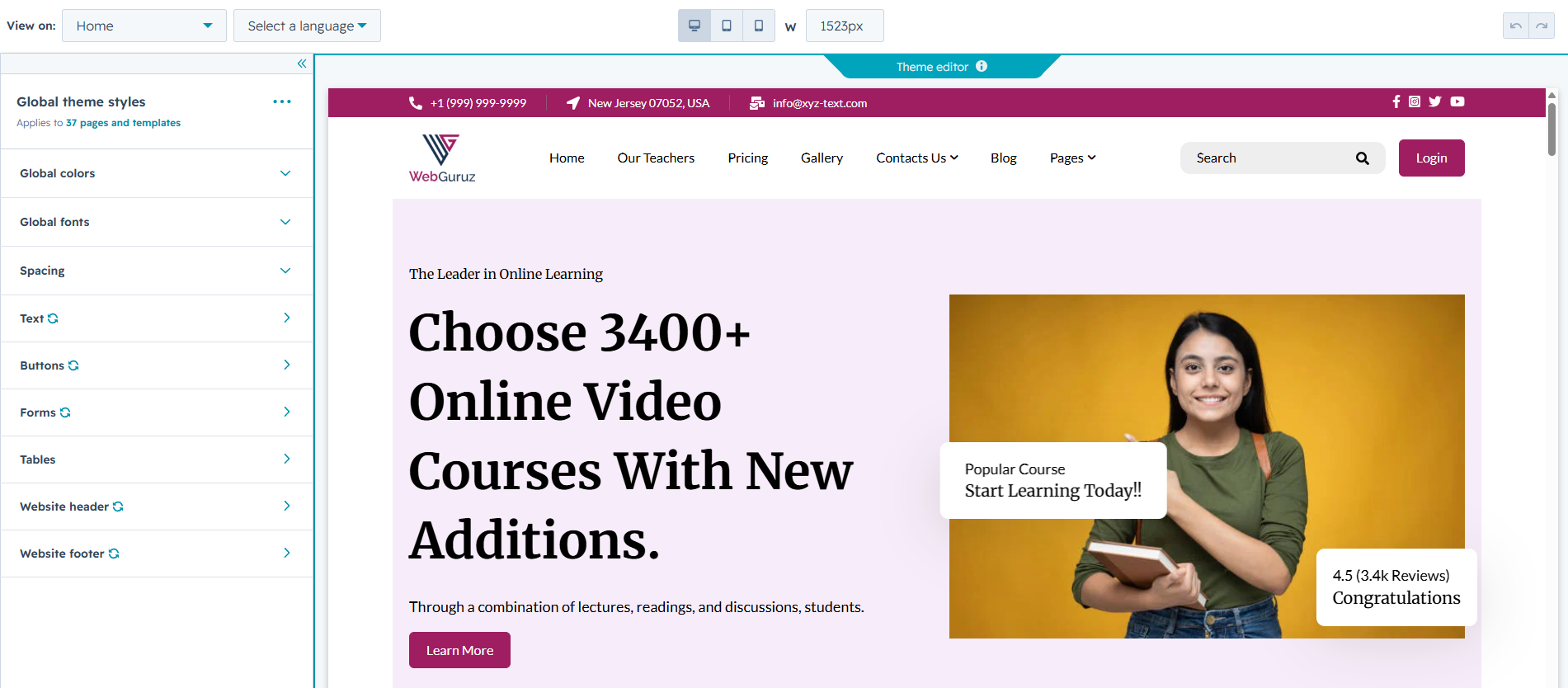
Changing the Global Styles – Check the Process
After you successfully create a page, you get an Edit Page Panel on the right side of the screen. In this panel 3 sections are listed named Add, Content, and Design. Click on Design and you’ll see an Edit Theme Settings button there. Click on it and make changes on theme globally.
Once these changes are made the effect will be visible on all the pages and assets of the website.
Here’s what you can change with this:
- Global Color & Font Setting
- Global Colors
- Global Fonts
- Layout Setting
- Website Header
- Website Footer
- Spacing
- Typography
- Buttons
- Forms
- Tables
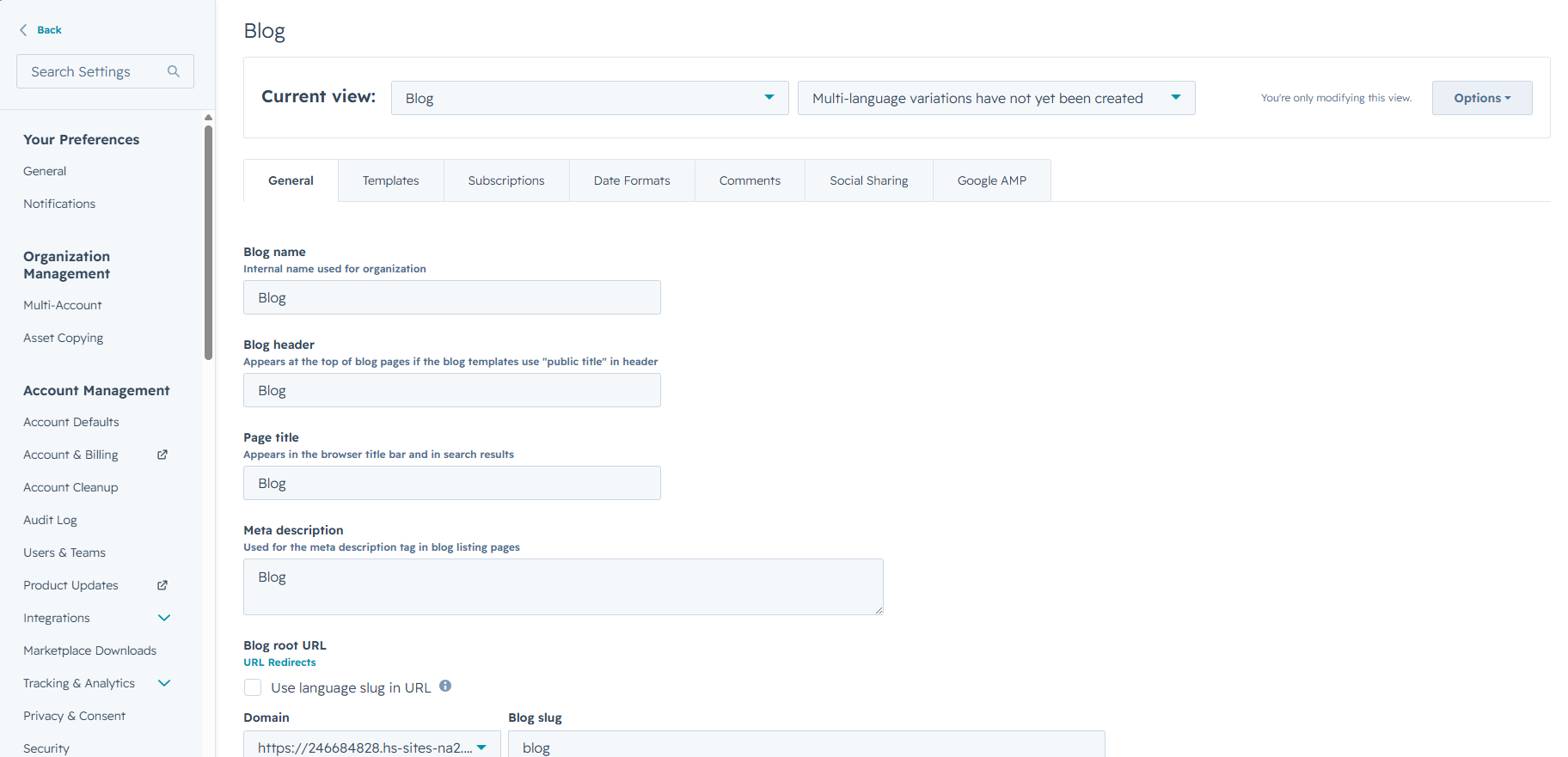
Changing the Blog Template and How!
Blog templates help you set a template for your blog pages. You can set a template for the following:
- Blog listing page
- Blog post page
To do this, go to Settings of your HubSpot account, scroll down on the left panel and click on Website Dropdown. Select Blog and click on Current view to see the option to create new blog To be see on page. Here enter the blog header title, blog page title, blog meta description header & footer style. Do not forget to save the changes.
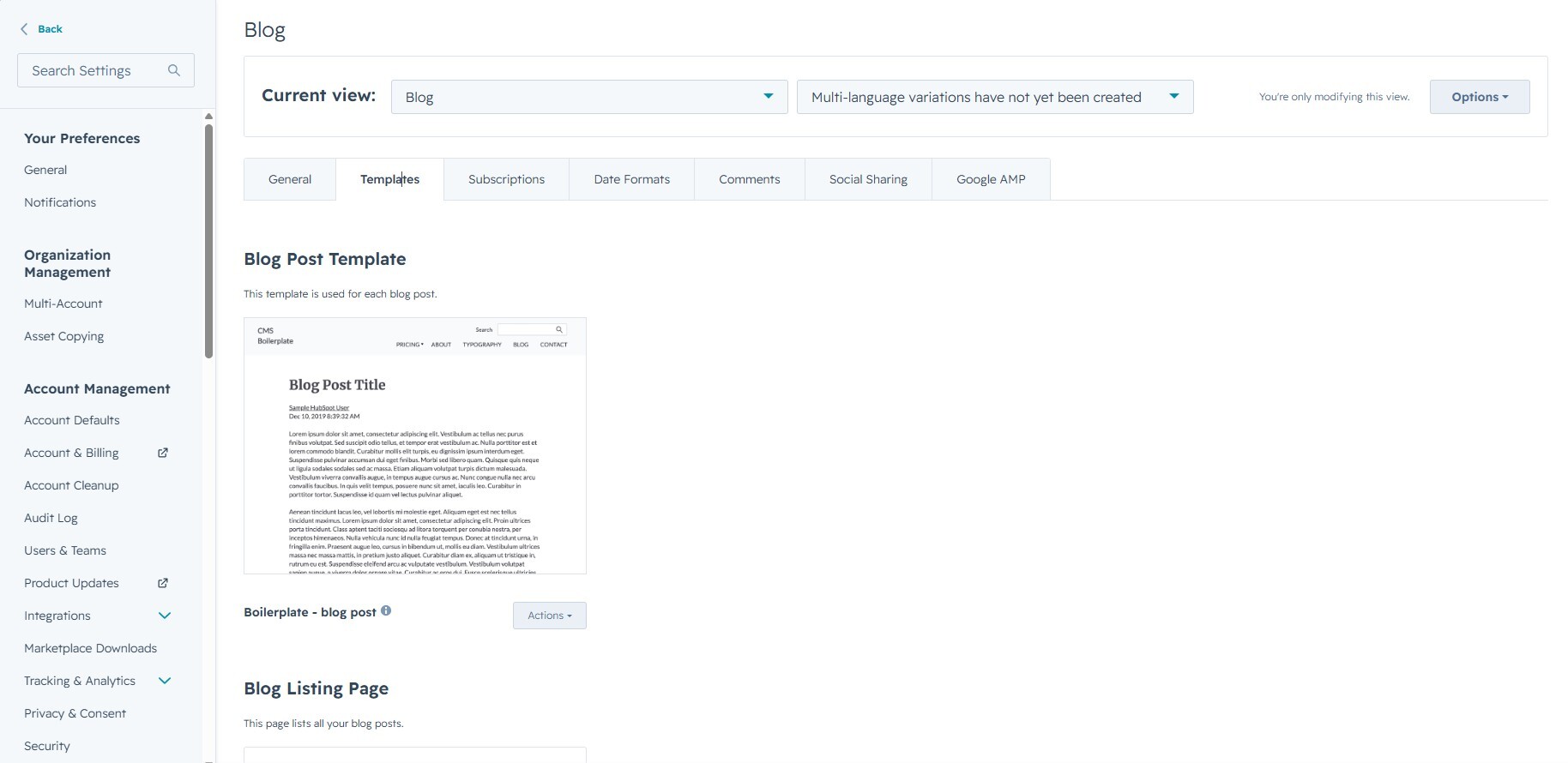
Changing the Blog Template and Blog Post Template How !
To do this, Select Blog and click on Template Tab to see the option to Blog post Template, Click to Action Option then select blog post template, Blog Listing Template, Click to Action Option then select blog Listing template. And enter the number in this input field to show how many blog post display on page. Do not forget to save the changes.
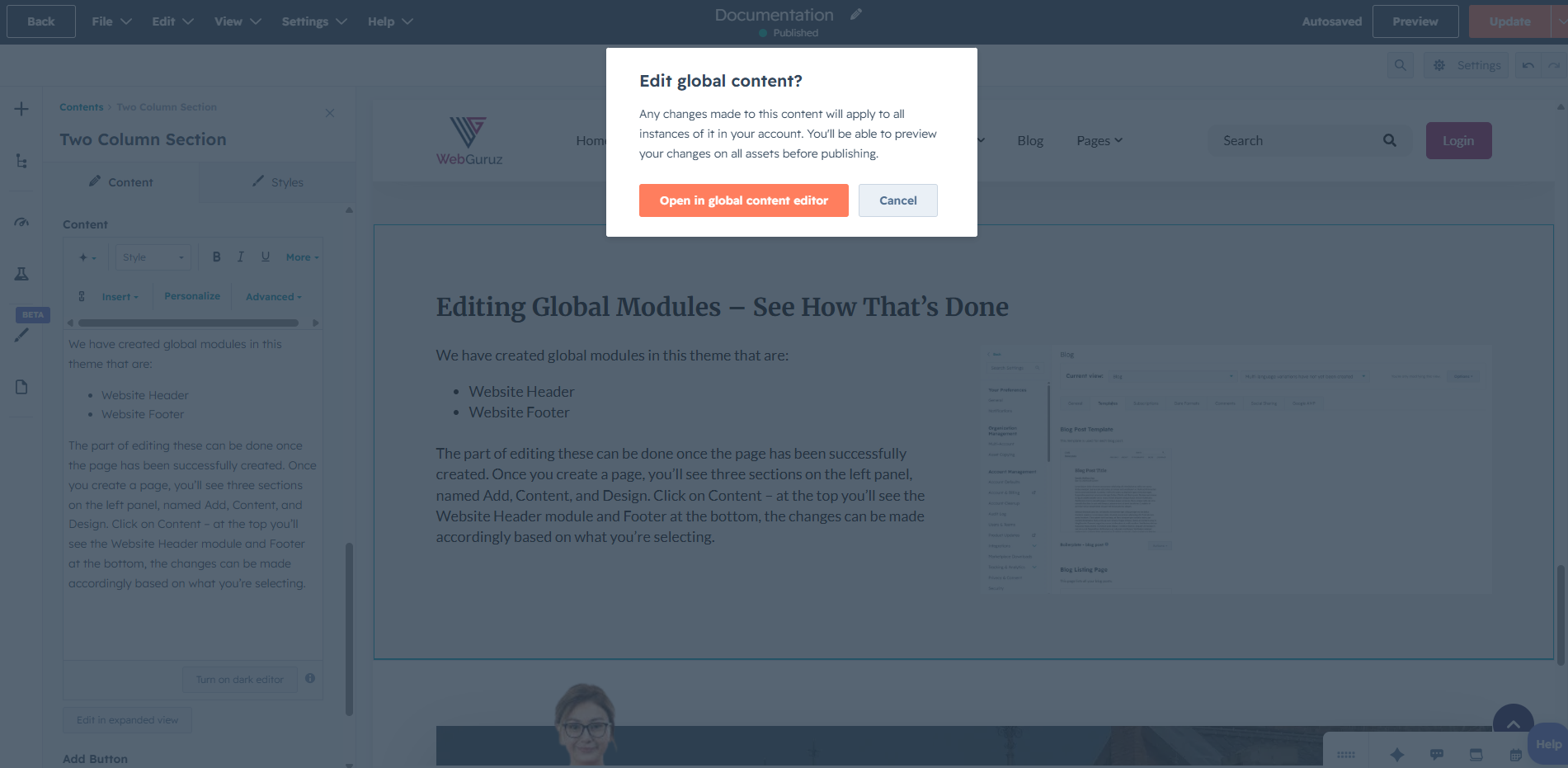
Editing Global Modules – See How That’s Done
We have created global modules in this theme that are:
- Website Header
- Website Footer
The part of editing these can be done once the page has been successfully created. Once you create a page, you’ll see three sections on the left panel, named Add, Content, and Design. Click on Content – at the top you’ll see the Website Header module and Footer at the bottom, the changes can be made accordingly based on what you’re selecting.
Creating the Systems Page – See How That’s Done
Step 1: Error Pages.
In short, you’ll be able to set them up in Content Settings. Here’s how it works.
404 and 500 error pages are called “System pages,” which HubSpot treats differently when being set up. The process is pretty straightforward and here is how it’s done.
- The gear icon on your HubSpot dashboard can be accessed by clicking the corner.
- Scroll to the bottom of the left-hand sidebar and click this.
- Go to the “System Pages” tab and click it as you mean it.
This page will appear. From your Theme, select the correct “Theme” system pages.
Be sure to save changes. That’s all there is to it!
Step 2: Search Results Page
- You will now be directed to the “System Pages” tab. The search results drop-down can be found by scrolling down.
- Choose “Theme” from the drop-down menu.
- Have it saved!